The Retyping Dilemma in Video Learning
Video is one of the highest-yield mediums for technical training and remote communication. However, it is an inherently non-interactive format:
- Coding Tutorials: The instructor types complex configuration lines or algorithms into their IDE. You must pause, look back and forth between two monitors, and manually transcribe the syntax, inevitably introducing typos.
- Webinars & Live Presentations: Slides flash on screen for only 30 seconds. You miss key statistics or bullet points while trying to write them down.
- Foreign Language Media: Subtitles or on-screen captions flash past before you can look up unfamiliar words.
The Better Way: Textly captures the visual pixels of your monitor directly from the display buffer. Even if the video is streaming, paused, or hardware-accelerated, Textly reads the visible letters as clear character data.
Step-by-Step: Copying Video Text with Textly
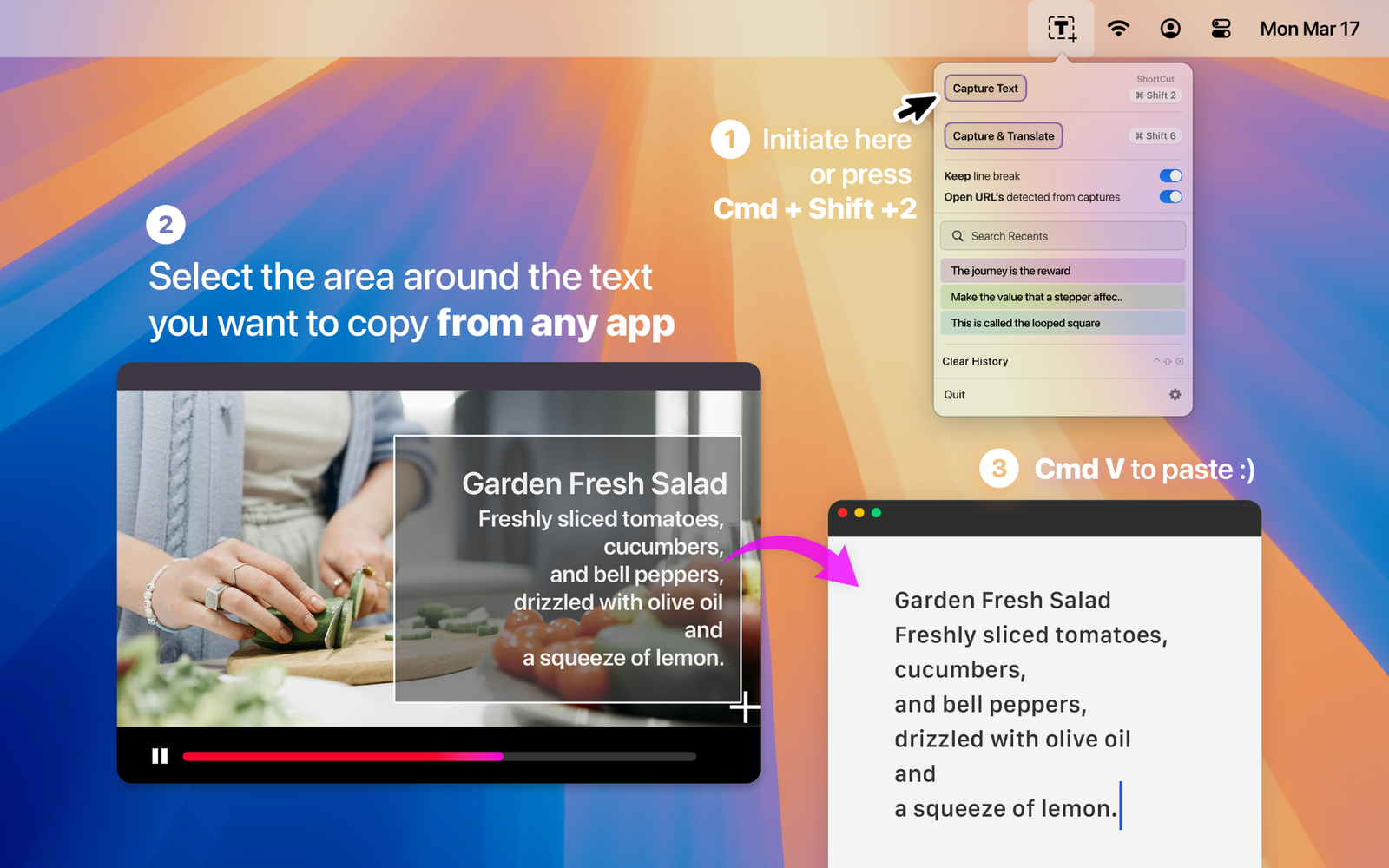
- Navigate to the Video Frame: Open your video in Safari, Chrome, YouTube, QuickTime, VLC, or inside an active Zoom/Teams conference call.
- Invoke Textly: Press Cmd + Shift + 2 (or click the Textly menu bar icon).
- Highlight the Words or Code: Drag your selection box over the code block, slide text, or caption.
- Instant Extraction: Release your mouse. Textly copies the exact text directly onto your clipboard.
- Paste into Your Project: Hit Cmd + V inside VS Code, Xcode, Notes, or your terminal.
Capturing & Translating Foreign Subtitles in One Motion
Watching international video content or technical documentation presented in Japanese, French, German, or Spanish?
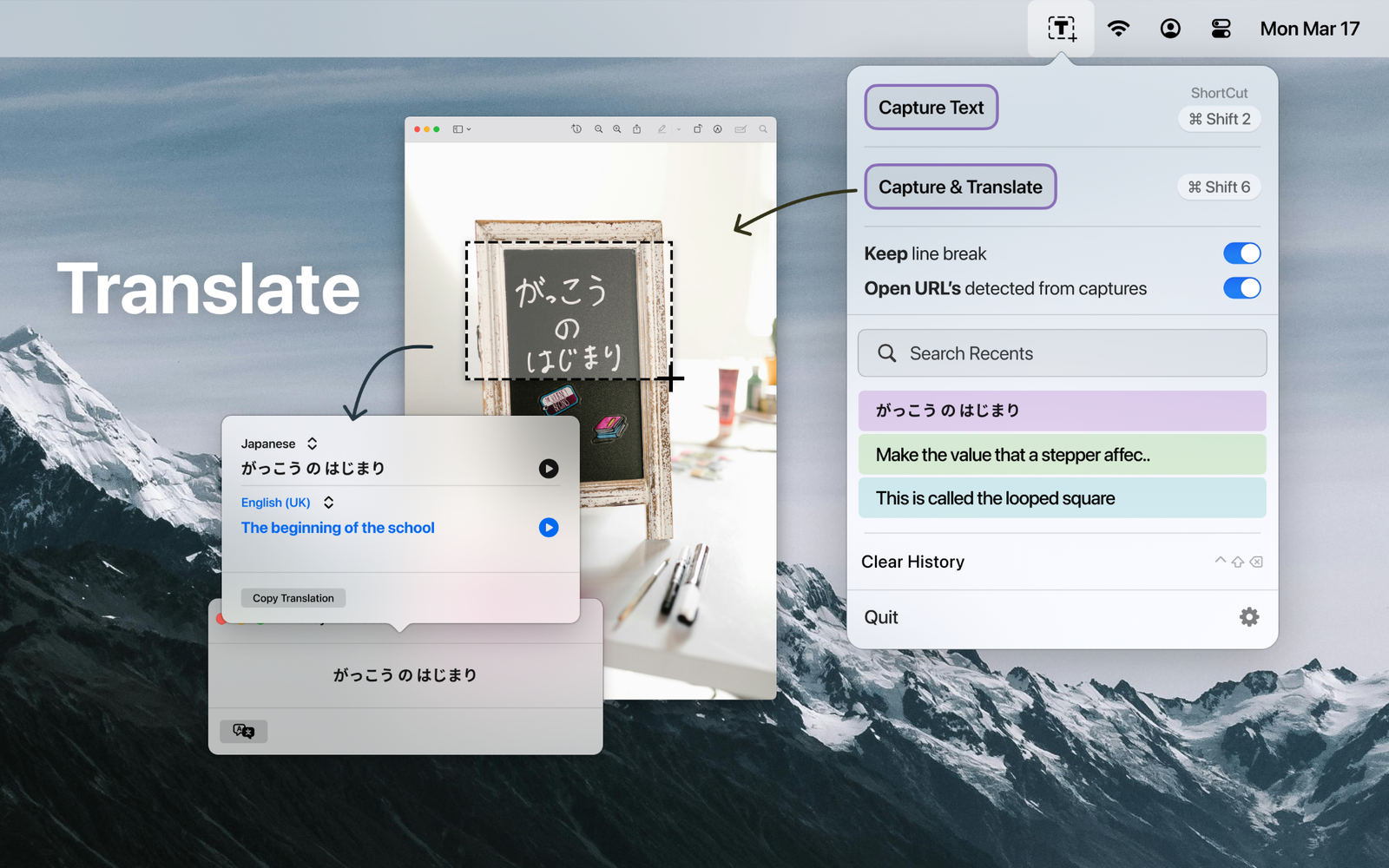
Textly includes an integrated Capture & Translate mode:
- Select Capture & Translate from the Textly menu.
- Drag your selection box over the foreign video text.
- Textly recognizes the source language and provides an instant translation right on screen, copying both original and translated text to your clipboard.
Works Across All macOS Video Apps
Unlike browser extensions that only work on specific HTML5 video tags, Textly works globally across your entire macOS operating system:
- Web Browsers: Safari, Google Chrome, Brave, Arc, Firefox.
- Desktop Players: QuickTime Player, VLC, IINA, Elmedia.
- Meeting & Conference Apps: Zoom, Microsoft Teams, Slack Huddles, Google Meet, Webex.
- Streaming Platforms: Netflix, Prime Video, Disney+, Twitch.
Frequently Asked Questions
Can I copy code from a coding tutorial video without retyping?
Yes. Drag a selection box over the code block in the video player and Textly extracts the exact lines onto your clipboard.
Do I need to pause the video before copying?
You can capture directly while the video plays, though pausing ensures the visual frame remains steady while you position the cursor.
Does Textly work during live Zoom or Google Meet screen shares?
Yes. Because Textly reads display buffer pixels, it captures any text presented on shared screens in live conferences.
Copy Text from Videos in One Shortcut
Never pause to retype another slide or code snippet. Grab Textly for Mac and supercharge your study and work sessions.