Why Some Text Cannot Be Selected on macOS
On a standard operating system, text selection requires that the underlying software exposes an active text layer to the macOS accessibility and windowing subsystem. However, millions of everyday computer interactions break this convention:
- Locked or Protected PDFs: Scanned documents, contracts, and ebooks often render pages as rasterized imagery rather than selectable vector glyphs.
- Websites with Disabled Selection: Web applications frequently implement CSS rules like
user-select: none;or JavaScript event listeners that prevent standard clicking and highlighting. - System Dialogs & Error Messages: macOS crash dialogs, installer prompts, and system alerts frequently present text inside non-editable labels where the mouse cursor cannot highlight strings.
- Videos & Presentations: Slide decks shown during Zoom, Microsoft Teams, or Google Meet video calls are rendered as streaming pixels.
- Images and Diagrams: Infographics, flowcharts, receipts, and user interface mockups contain crucial words locked inside bitmap formats (.png, .jpeg, .webp).
The Traditional Workaround: Taking a screenshot, saving it to your Desktop, uploading it to an online OCR website, waiting for processing, copying the result, and deleting the screenshot file. This friction costs minutes each day.
Method 1: Instant Screen OCR with Textly (Recommended)
The fastest and most reliable way to copy unselectable text on any Mac is by using a dedicated screen OCR menu bar utility like Textly. Textly reads directly from your display buffer and utilizes Apple's high-performance on-device Neural Engine.
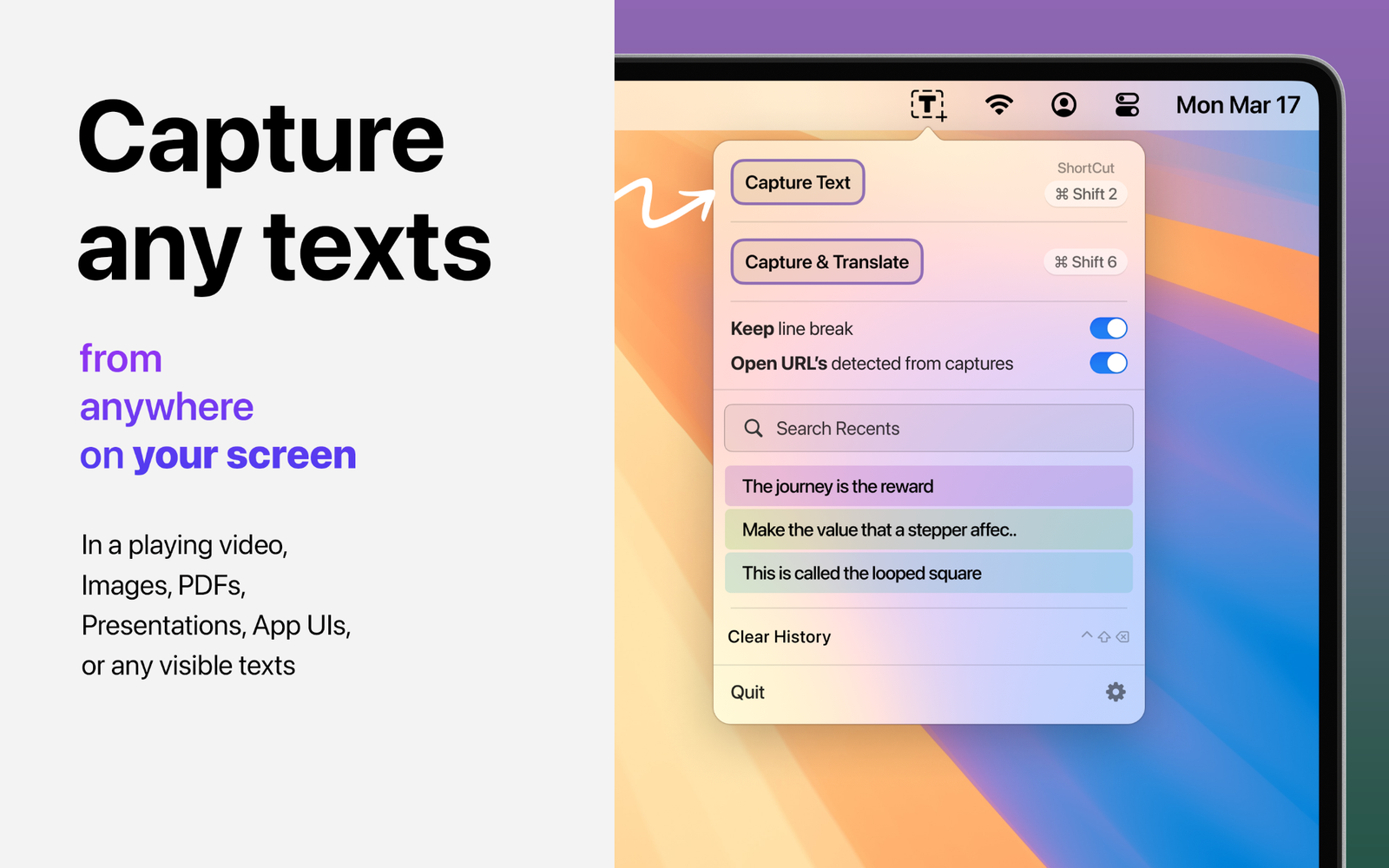
Step-by-Step Instructions:
- Trigger the Capture Shortcut: Press Cmd + Shift + 2 (or click the Textly icon in your menu bar and choose Capture Text).
- Draw a Selection Box: Your cursor transforms into a precise crosshair. Click and drag a box across the unselectable text on your screen.
- Instant Clipboard Copy: Release your mouse. Textly immediately extracts the words using Apple's Vision framework and places the clean text onto your clipboard.
- Paste Anywhere: Press Cmd + V to paste the captured text into your notes, code editor, chat, or browser.
Method 2: Using Apple's Built-in Live Text (Limitations)
Starting in macOS Monterey, Apple introduced Live Text, which automatically detects text inside images. While helpful, it has severe workflow limitations when dealing with unselectable screen content:
- App Restrictions: Live Text only functions natively inside Apple applications (Safari, Photos, Preview, and Quick Look). It does not work across arbitrary third-party apps like Slack, Notion, VS Code, Figma, or system dialogs.
- Screen Clutter: To use Live Text on arbitrary desktop content, you must first press Cmd + Shift + 4, save a screenshot to your disk, double-click to open it in Preview, hover over the text, and copy it.
- No Table Structure: Live Text does not preserve rows and columns if you are trying to capture tabular data—it simply mashes all words into a single line.
Capturing Unselectable Tables Without Mangling Format
One of the biggest pain points when copying unselectable content is dealing with data tables. Conventional screenshot tools grab the words but completely destroy the grid relationships, forcing you to manually re-space dozens of entries.
Textly addresses this with Structured Table Capture. By analyzing both text contours and horizontal/vertical grid boundaries, Textly reconstructs the table hierarchy. When you paste the result, it lands cleanly formatted into spreadsheets like Numbers, Excel, or Google Sheets. Learn more in our dedicated guide to extracting tables from images on Mac.
Privacy & Security: Why Local OCR Matters
When copying sensitive error messages, financial tables, personal emails, or confidential code snippets, sending screenshots to free online cloud OCR converters poses severe security risks.
Textly conducts 100% on-device OCR. It never connects to an external cloud recognition server, meaning zero telemetry, zero image uploads, and total compliance with strict enterprise confidentiality guidelines.
Frequently Asked Questions
Why can't I select text on some Mac screens or apps?
Many applications render text as flattened graphics (like video subtitles, canvas elements, or bitmap mockups) or intentionally disable system selection using CSS or protected PDF flags.
Can I copy text from a macOS error dialog box?
Yes. Although macOS dialogs do not allow standard click-and-drag cursor highlighting, invoking Textly's shortcut lets you draw a capture rectangle over the dialog and extract the text instantly.
Does Textly support offline operation?
Yes, Textly runs completely locally on your Mac using native macOS document-understanding APIs. No internet connection is needed for text or table extraction.
Never Retype Unselectable Text Again
Get Textly for Mac. Extract unselectable words, capture tables with rows and columns preserved, and translate in one seamless flow.