The Dangers of Free Online "Image to Text" Websites
A quick search for "convert image to text" brings up dozens of ad-saturated web converters. While they may deliver text, they introduce significant problems:
- Confidentiality Breaches: Uploading invoices, customer contracts, medical records, or proprietary schematics to third-party web servers violates GDPR, HIPAA, and corporate confidentiality policies.
- Slow & Clunky Flow: Saving an image, browsing for the file in a browser dialog, solving CAPTCHAs, and waiting for server queues wastes minutes per document.
- Adware & Tracking: Many free conversion portals survive on aggressive affiliate cookies and intrusive ad banners.
The Modern Alternative: Apple Silicon Macs (M1 through M4) feature dedicated Neural Engine hardware capable of executing billions of machine learning operations per second. There is zero reason to upload images when your Mac has industry-leading OCR built directly into its silicon.
How Textly Converts Images to Text Instantly
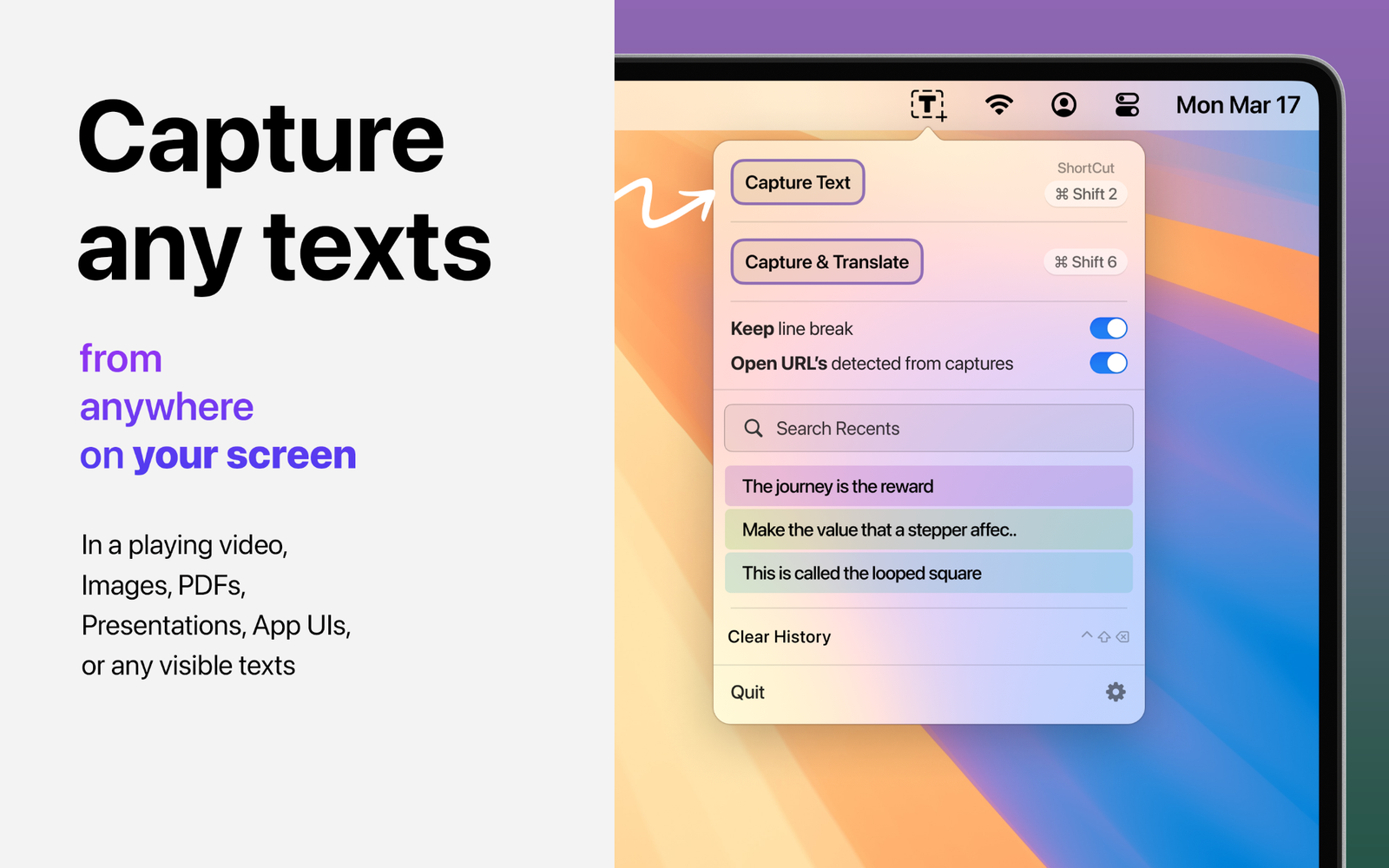
With Textly running in your menu bar, you don't even need to open the image in a specialized photo editor:
- Open the image in any viewer, preview, browser tab, or message thread.
- Press Cmd + Shift + 2.
- Drag a box across the image text.
- Release—the words are on your clipboard, ready to paste with Cmd + V.
Extracting Complex Layouts: When Images Contain Tables
What if the image is a screenshot of a spreadsheet, an invoice with rows of costs, or a nutritional fact label?
Regular image-to-text converters smash all numbers and labels into a meaningless blob. Textly’s Capture Table mode preserves the 2D layout:
- Columns remain separated by tab stops.
- Rows remain cleanly stacked.
- When pasted into Excel or Numbers, each value lands into its own individual spreadsheet cell.
Read our in-depth walkthrough on extracting tables from images on Mac for real-world examples.
Instant Translation of Image Text
If your image contains foreign languages (Japanese menus, German equipment manuals, Spanish signs), Textly doesn't just copy the characters—it translates them directly:
- Use Capture & Translate to inspect the image.
- Get the translated meaning displayed in an elegant HUD overlay.
- Both the original text and the translated result are saved to your recent captures history for future reference.
Frequently Asked Questions
Is my image uploaded to external servers when using Textly?
Never. Textly performs 100% on-device OCR using Apple Vision and Apple Neural Engine. Your data stays strictly on your computer.
What image formats are supported?
Any format that can be shown on your Mac display: PNG, JPEG, WEBP, HEIC, TIFF, SVG, and PDF.
Can Textly recognize text in low-contrast images?
Yes. Apple's machine learning Vision framework handles stylized fonts, small text sizes, and noisy backgrounds with exceptional accuracy.
Convert Images to Text Safely & Instantly
Get Textly for Mac. No cloud uploads, no monthly subscriptions, just pure on-device OCR speed.