Why Traditional Screenshotting Clutters Your Mac
The default macOS screenshot mechanism (Cmd + Shift + 4) is designed for capturing graphic files. But in modern digital work, more than 60% of screenshot actions are taken solely to grab text:
- An order tracking number in an email you cannot highlight.
- A line of terminal output or crash traceback.
- A quote from a presentation slide.
- An address from an image banner.
Each time you do this traditionally, a 4MB PNG image is created on your Desktop. Over weeks, your desktop turns into an unnavigable graveyard of disposable images that require manual cleanup.
The Direct Route: Screen Capture OCR
With Textly, you bypass image generation completely. You trigger a single global shortcut, drag a box over what you want, and your Mac immediately places the converted characters into your system pasteboard.
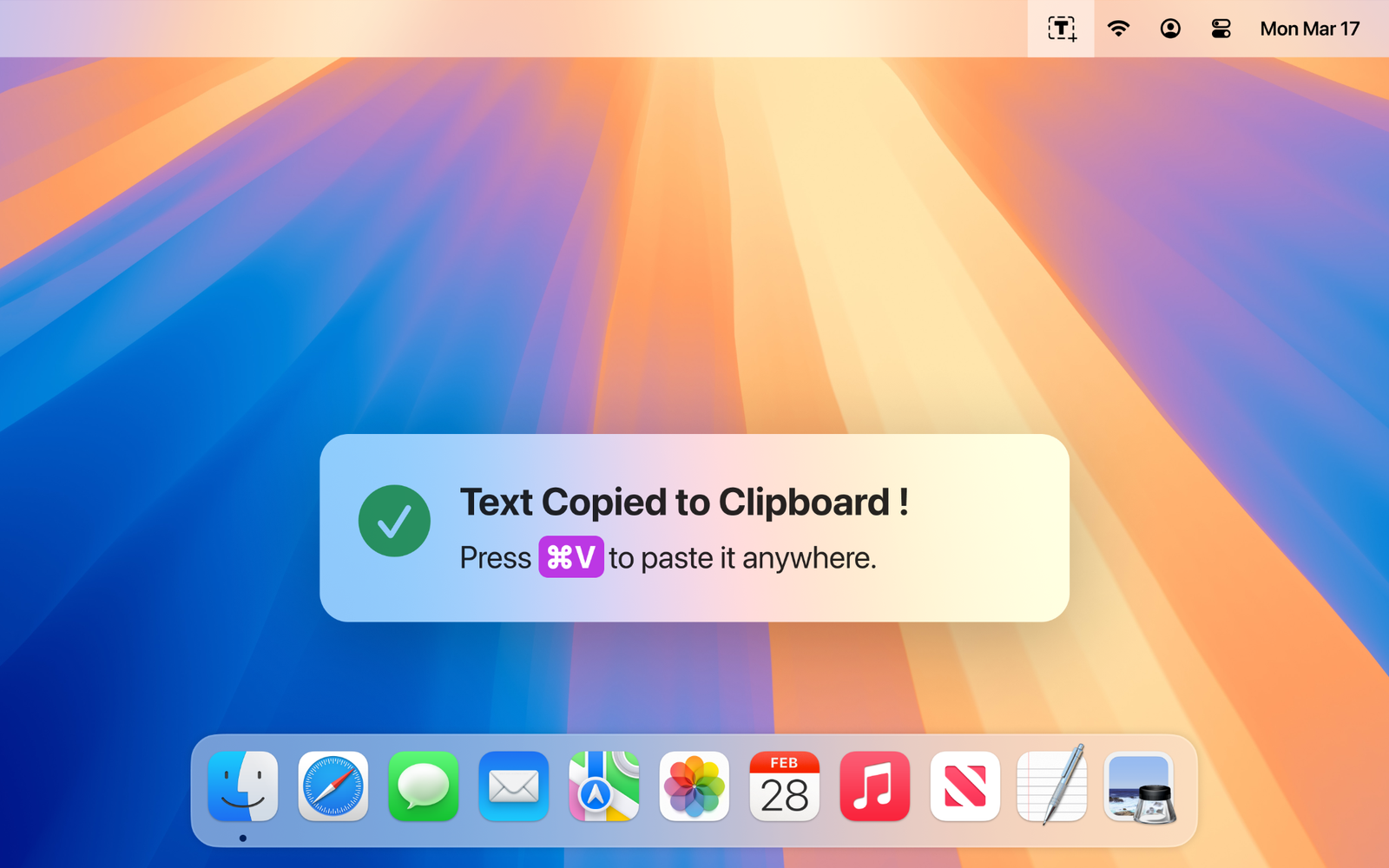
How to Set Up Your Screen-to-Text Workflow in Under a Minute
- Download and Launch Textly: Launch the app from your Applications folder. It settles quietly into your macOS menu bar.
- Use the Global Shortcut: By default, pressing Cmd + Shift + 2 engages screen capture mode.
- Select the Area: Click and drag the crosshair over any portion of your display—whether it’s inside an app, a protected browser tab, or an image.
- Paste: Hit Cmd + V anywhere you want the text to appear.
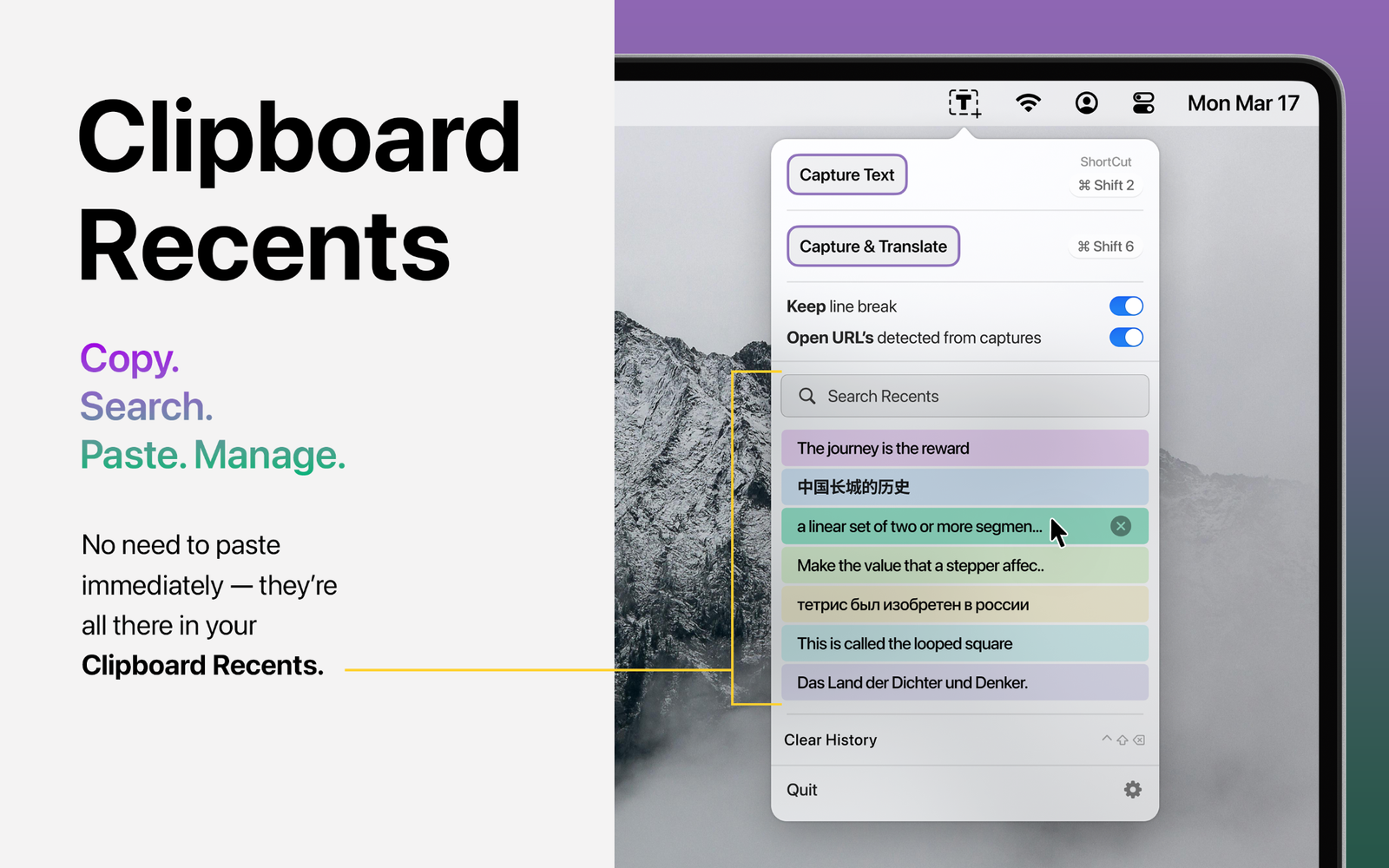
Bonus Superpower: Clipboard Recents Tray
What happens if you captured something five minutes ago, copied something else in between, and now need that earlier snippet?
Most basic OCR utilities provide zero memory—once you copy another item, your captured snippet is lost forever. Textly solves this with an integrated Searchable Clipboard Recents Tray right from your menu bar:
Capturing Structured Tables vs. Raw Text
If your screen capture contains multiple columns or financial figures, standard text capture will combine them into one continuous sentence.
Textly gives you the choice: use Capture Text for everyday sentences and code, or Capture Table for pricing grids, spreadsheets, and invoices. Check our tutorial on extracting tables from images on Mac for full details.
Frequently Asked Questions
How is screen capture to text different from taking a normal screenshot?
Normal screenshots create file clutter (.png files on your desktop). Screen capture to text recognizes the characters immediately and populates your clipboard, saving time and disk space.
Can I search past text captures if I forgot to paste one?
Yes. Textly keeps a local, searchable history of your recent captures in its menu bar tray.
Does Textly support external displays and high-DPI Retina screens?
Yes, Textly is fully optimized for macOS Retina displays and multiple external monitors.
Ditch the Cluttered Desktop Screenshots
Upgrade your macOS workflow with Textly. Convert screen regions directly into editable clipboard text in milliseconds.